Israel Tycoon Controls & UI Guide
Movement, camera, Shop codes, mobile tips, and plot navigation that keep belts earning.
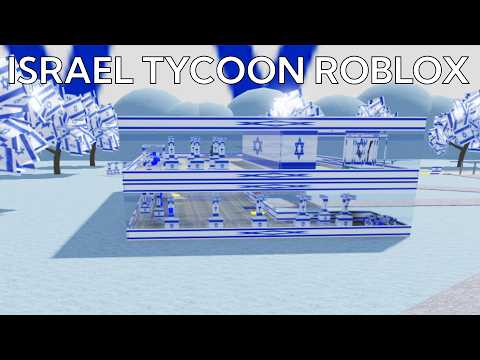
This Controls guide teaches the practical inputs and UI habits that keep Israel Tycoon sessions smooth. The game uses standard Roblox movement, but tycoon progress depends on how well you aim the camera at jammed belts, tap the right purchase buttons, and open the Shop without buying the wrong wall. Read this after Getting Started if menus still feel awkward, or keep it open on a second screen during your first long session.
Israel Tycoon is a free Simulation/Tycoon on eight-player servers. You claim a plot, buy droppers and conveyors, expand floors and walls, and chase cash toward badges. Clean controls do not replace a good purchase order—but bad camera habits silently erase income when items fall off corners you never noticed.
Desktop movement basics
On PC and most keyboard setups:
- W / A / S / D move your character forward, left, back, and right.
- Space jumps onto raised floors or over low belts when a path is blocked.
- Shift (if enabled in Roblox settings) can sprint depending on your client defaults.
- Hold the right mouse button and drag to orbit the camera; scroll to zoom.
Stay close to your plot for the first purchases. Early buttons sit on your tiles, and walking away mid-claim on a full eight-player server risks confusion when another pad fills.
Camera habits that protect CPS
Dropper income dies when conveyors jam. Build a camera routine:
- After every new dropper or belt segment, zoom out until you see the full path from spawn to collector.
- Watch one item travel end-to-end before you buy the next machine.
- Zoom in on sharp corners where pieces commonly fall off.
- When you return from roaming for crates, do a quick orbit of the pad before redeeming more codes or expanding.
Jam-checking with the camera is faster than rebuilding an entire floor later. Pair this habit with layout tips in expand your base.
Buying buttons on the plot
Plot buttons are world prompts, not only HUD menus. Walk near the labeled pad, face the button, and confirm the purchase when the prompt appears. Common mistakes:
- Standing too far away so the prompt never shows.
- Facing the wrong adjacent wall and buying vanity space instead of a dropper.
- Clicking rapidly on mobile and double-buying cheap tiles.
- Ignoring the price label because you assumed the button was a conveyor.
If a button looks grayed out or unaffordable, check your cash and whether a gated floor still blocks access. Expansion tiles often sit between you and the next useful machine.
Shop UI for codes
Promo codes live in the Shop, not on random billboards. Typical flow:
- Open SHOP from the left-side UI.
- Find Enter a code! (wording can shift slightly after patches).
- Paste an active string such as
60KVISITS!,THANKYOU, or500LIKES!. - Press REDEEM and wait for confirmation cash.
Full step-by-step screenshots and troubleshooting live on how to redeem codes. Skip expired strings like HAVEFUN. After a successful redeem, spend toward droppers within a couple of minutes so the cash becomes CPS instead of idle wallet flex.
If the Shop panel vanishes after a soft HUD glitch, rejoin once. Do not assume codes are broken until you reopen the menu on a fresh join.
Mobile and tablet tips
Touch controls change the failure modes:
- Use the on-screen joystick for movement; keep your thumb clear of purchase prompts while walking the pad.
- Pinch or use the camera stick to zoom out for jam checks—mobile FOV makes belt corners easy to miss.
- Tap purchase buttons deliberately; fat-finger buys on cheap walls waste early code cash.
- Consider a landscape orientation so Shop and plot buttons share the screen more comfortably.
- When pasting codes, keep the Roblox app permissioned for clipboard paste, or type carefully—codes are case sensitive in many tycoons.
On smaller phones, claim a plot near a quieter map edge if possible so you are not fighting crowd camera shake while learning UI.
Plot navigation on eight-player servers
Servers hold only eight players, so pads fill quickly during peaks. Navigation checklist:
- Spawn, scan for free pads, claim immediately.
- Learn the walking path from your collector back to the map center so crate runs do not get you lost.
- Memorize where your Shop button sits relative to spawn so you can redeem without hunting UI.
- After air-drop sweeps, return on a straight line and re-check belts before AFK.
If every plot is taken, hop servers rather than spectating. Controls skill does not help if you never own a pad.
Recommended control checklist each session
- Movement feels responsive (keyboard or joystick)
- Camera zoomed out enough to see the full starter belt
- First dropper purchase confirmed on the correct button
- Shop opened and unused codes redeemed
- One full item journey watched after each major belt change
- Mobile players confirmed no accidental wall buys
- Path back from crate zones memorized
Pairing controls with other guides
Controls unlock comfort; other pages unlock strategy:
- Getting started — day-one loop and first dropper line
- How to redeem codes — Shop UI deep dive
- Expand your base — floors, walls, jam-proof layouts
- Earn money fast — spend order after inputs feel natural
- Air drops — map routes once you can leave the pad safely
Accessibility and comfort settings
Roblox client settings can reduce frustration: lower graphics if belts stutter, enable shift-lock only if you prefer it for precise walking near machines, and raise UI scale on high-DPI displays so Shop text stays readable. None of these settings replace verifying you joined the official place—see the fake-place warnings on the listing and bookmark the real link from the Links Hub.
Common control mistakes
- Never zooming out — jams stay invisible until cash stalls.
- Buying while sprinting past buttons — wrong tile purchases.
- Ignoring Shop after codes drop — free cash sits unclaimed.
- Roaming crates with a broken belt — map time wastes production.
- Fighting the camera on mobile in portrait — missed prompts and mis-taps.
- Rebinding so hard you forget jump height — stuck under multi-floor pads.
Practice drill (ten minutes)
- Join, claim, redeem one small code.
- Buy one dropper and the minimum belts.
- Zoom out, watch three items cash in.
- Intentionally break a corner, zoom in, fix it.
- Open Shop again and close it without mis-buying.
- Walk a short crate loop and return without losing orientation.
Finish the drill and you will spend less mental energy on inputs and more on the tier list decisions that actually raise income.
Mastering Israel Tycoon controls is about reliable camera discipline and careful Shop use. Move cleanly, aim the lens at every new belt, redeem codes without fat-finger mistakes, and your plot stays ready for expansion and badge grinding.
Frequently Asked Questions
Quick answers about codes, droppers, badges, and progress in Israel Tycoon.
What are the basic Israel Tycoon controls on PC?
Use WASD to move, Space to jump, and right-mouse drag plus scroll to orbit and zoom the camera while you buy plot buttons and check belts.
How do I open the Shop to redeem codes?
Open SHOP on the left UI, find Enter a code!, paste an active string, and press REDEEM. See the how-to-redeem guide for troubleshooting.
Why should I zoom the camera on my plot?
Zooming out reveals conveyor jams and incomplete belt corners that silently stop cash. Watch one full item path after every major purchase.
Any mobile-specific tips for Israel Tycoon?
Use the on-screen joystick carefully, zoom out for jam checks, tap purchase buttons deliberately to avoid wrong walls, and prefer landscape when possible.
What should I do if the Shop UI disappears?
Rejoin once and reopen SHOP. Soft HUD bugs happen; do not assume every code is expired until the menu loads cleanly.
How do controls relate to expanding my base?
Good camera and movement habits help you reach gated buttons safely and spot jams after floors or walls unlock denser dropper rows.